Scratchbox Complete Student Handbook
The ultimate quick-start and operating guide for students. Learn how to log in, explore your student dashboard, join batches, complete coding and MCQ labs, write efficient code in the cloud IDE, track your rankings, and practice daily.
📑 Table of Contents
1. Getting Started & Platform Access
Scratchbox is an all-in-one digital coding platform and automated assessment engine designed for college courses, laboratory assessments, and self-paced technical learning.
⚡ Zero Setup Required
You do not need to install compilers, Python interpreters, Java JDKs, GCC, or local IDEs on your computer. Everything runs securely in isolated cloud sandboxes with sub-second execution speeds.
1.1 Moving from the Landing Page to the Platform
- Open your browser and navigate to scratchbox.app.
- Click the "Sign In" or "Get Started" button in the top navigation bar.
- You will be directed straight to the Scratchbox Student Portal at platform.scratchbox.app.
1.2 Supported Programming Languages & Runtimes
Scratchbox comes pre-configured with updated compilers and runtimes for all major computer science curricula:
2. Google Sign-In & Student Role Selection
Getting started on Scratchbox takes less than 30 seconds with 1-click Google authentication.
Student Account Registration Flow
-
Open the Login Portal: Navigate to
platform.scratchbox.app. - Continue with Google: Click the orange "Continue with Google" button. Select your official college Google account (or personal Google account if instructed by your department).
- Select the "Student" Card: On your first sign-in, you will see the Role Selection screen. Click on the Student option card.
- Instant Access: Unlike teachers (who require an institutional invite code), students are registered immediately and taken straight to their Student Home Dashboard.
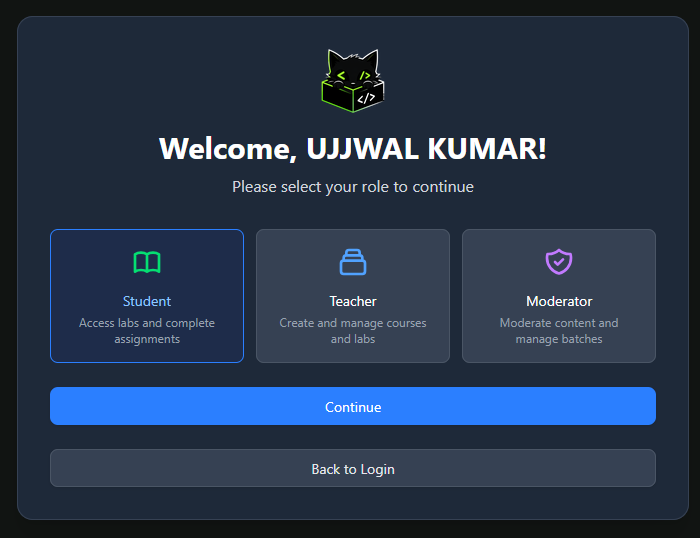
Figure 2.1: The Role Selection Screen — Click on "Student" to enter your student workspace.
3. The Student Home Dashboard & Quick Access
Immediately after logging in and selecting the Student role, you land on your personalized Student Home Dashboard. This is your central hub for tracking your academic metrics, daily challenges, and jumping into your coursework.
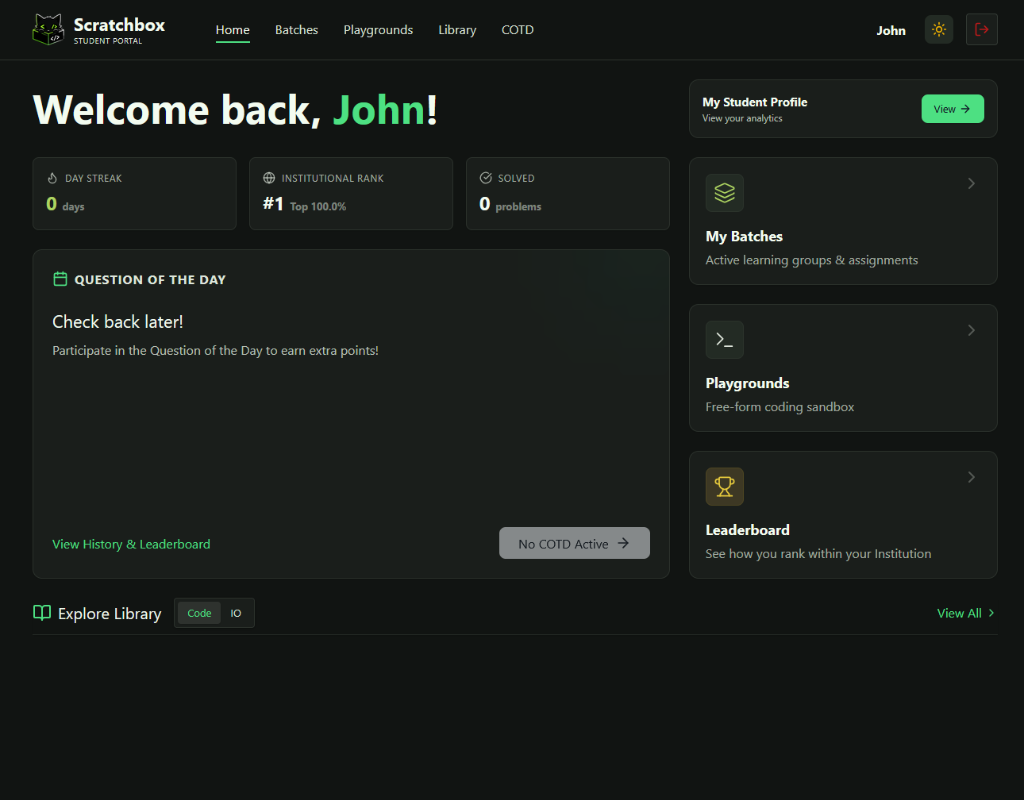
Figure 3.1: The Student Home Dashboard — featuring Day Streak, Campus Rank, Problems Solved, Daily Challenge, and Quick Access cards.
3.1 Anatomy of the Student Home Dashboard
3.2 Quick Jump & Practice Cards
- Challenge of the Day (COTD): The top banner gives you immediate 1-click access to today's daily problem to earn XP and climb the daily leaderboard.
- My Batches Card: Quickly opens your enrolled college batches and pending assignments.
- Playgrounds Card: Jump straight into your personal multi-language sandboxes for freeform coding.
- Practice Library Recommendations: Browse and practice popular problem templates (Arrays, Strings, Trees, Dynamic Programming) directly from the home screen.
4. Joining Batches & Accessing Courses
All college coursework, lab assignments, internal evaluations, and MCQ tests are organized into Batches (e.g. CSE-2026-Section-A) and Courses (e.g. Data Structures & Algorithms).
4.1 Joining a Batch with a 6-Character Code
Your teacher or lab faculty will provide you with a unique 6-character Batch Code (for example: X9K2PQ).
- Click "Batches" in the top navigation bar.
- Click the orange "Join Batch" button.
- Enter the 6-character code provided by your teacher and click "Join".
- Your batch card will appear immediately in your "My Batches" directory.
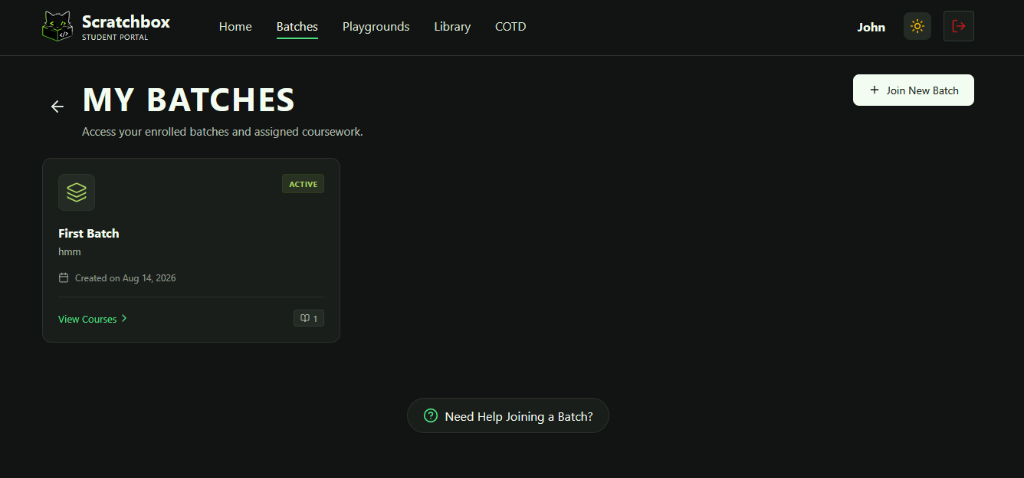
Figure 4.1: The My Batches dashboard displaying active college classes and assigned teachers.
4.2 Navigating Courses & Lab Assignments
Click on any batch card to view its enrolled courses. Each course contains scheduled coding labs, practice sets, and MCQ assessments.
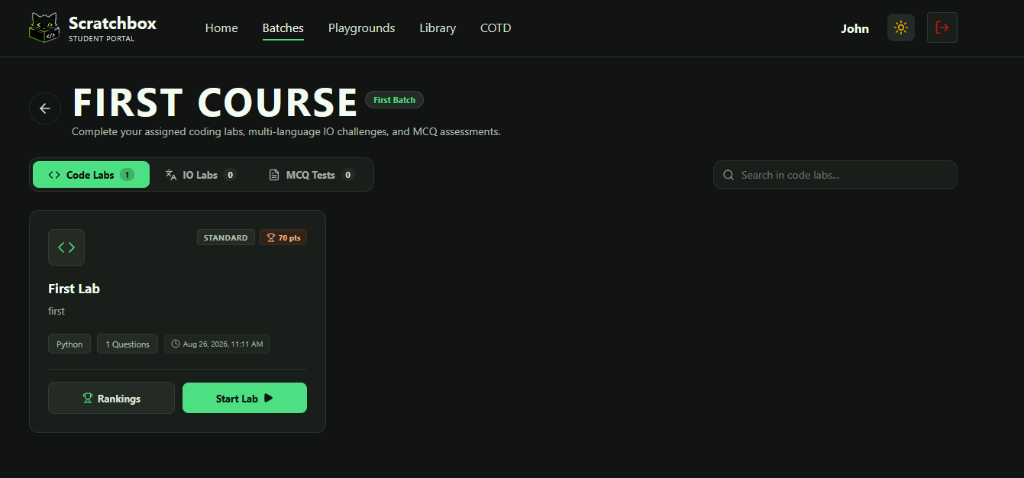
Figure 4.2: Course view showing assigned coding labs, total problems, and start buttons.
5. Types of Labs: Lang, IO & MCQ Assessments
Scratchbox supports three primary lab assessment models tailored for different styles of programming and evaluation:
Language Labs (Lang Labs / Function-Based)
In Language Labs (LeetCode style), you are given a starter function with specific parameters and a return type.
- Focus: You only implement the solution inside the provided method/function.
- Automated Driver Code: The platform handles input parsing and outputs behind the scenes.
- Multi-Language Selection: You can select your preferred language (e.g. C++, Java, Python) from the language dropdown if permitted by faculty.
- Test Cases: Graded against visible sample test cases and hidden edge cases.
Standard I/O Labs (IO Labs / Competitive Style)
In Standard I/O Labs (HackerRank / Codeforces style), your program reads raw input from stdin and prints the result to stdout.
- Focus: Reading multiple input lines, numbers, matrices, or strings using standard input methods (e.g.
cinin C++,Scannerin Java,input()in Python). - Exact Matching: Output formatting (spaces, newlines, capitalization) must match the expected format exactly.
- Custom Input Support: You can write custom input in the test panel to test arbitrary inputs before submitting.
MCQ Assessments (Multiple-Choice Quizzes)
Used for theoretical assessments, code tracing questions, algorithmic complexity quizzes, and aptitude tests.
- Question Palette: Easily jump between questions, flag questions for review, and track answered vs unanswered items.
- Strict Timer: A countdown timer shows the time remaining. When the timer hits 00:00, your test is automatically submitted.
- Instant Result/Analytics: Depending on faculty settings, scores and correct explanations are displayed immediately after submission.
6. Inside the Cloud IDE & Code Solver
When you click "Start Lab", you enter the Scratchbox Cloud IDE. The interface is optimized for focused coding without distractions.
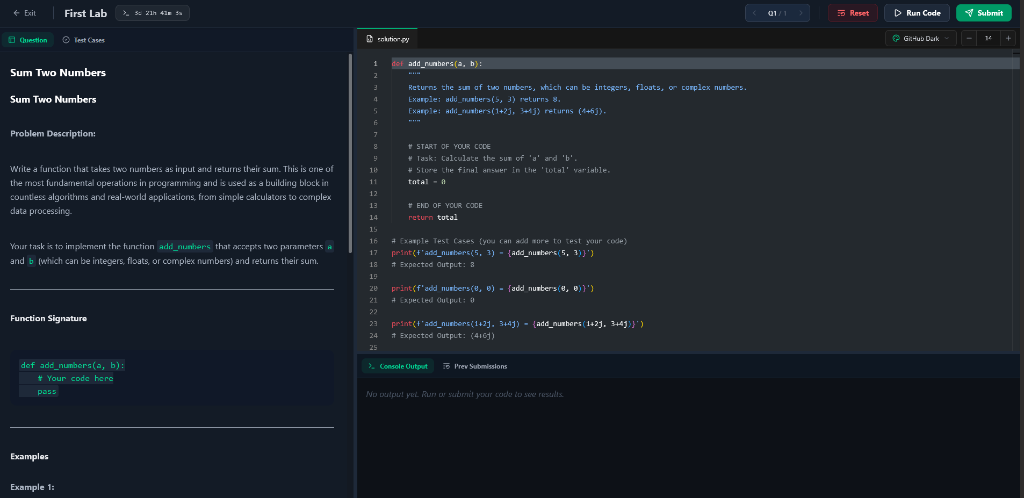
Figure 6.1: The full Cloud IDE workspace featuring split-pane question description, editor, and console.
6.1 Workspace Layout Anatomy
6.2 "Run Code" vs. "Submit"
Executes your program only against the visible sample test cases or custom input. It does not record an official score and you can run it as many times as you like to debug.
Compiles and executes your code against the complete test suite (public + hidden test cases). Scores, execution speed, and memory usage are recorded in your batch gradebook.
6.3 Editor Customization & Auto-Save
- Themes: Choose between
Night Owl(Dark),GitHub Dark, orGitHub Lightvia the theme switcher. - Font Resizing: Scale editor font sizes up or down using the
+and-buttons in the header toolbar. - Instant Local Auto-Save: Your code is saved locally in your browser every 2 seconds. Even if you refresh or lose internet connection, your code is safely preserved.
7. Anti-Cheat, Fullscreen & Tab Penalties
For scheduled exams and graded lab assessments, teachers may enable automated Proctoring & Anti-Cheat Security.
⚠️ Academic Integrity Rules during Graded Labs
- Mandatory Fullscreen: When the lab starts, the browser enters forced fullscreen mode. Do not exit fullscreen until you have submitted your work.
- Tab-Switch Tracking: Switching to another browser tab, opening search engines, or switching applications triggers an on-screen warning dialog and increments your tab switch counter.
- Max Violation Threshold: If you exceed the maximum allowed tab switches (configured by your faculty, typically 3 switches), the system automatically locks the test and submits your current code.
- Copy-Paste Restrictions: Pasting external code from the clipboard is disabled or logged in the faculty audit trail during proctored sessions.
8. Global & Batch Leaderboards
Scratchbox promotes peer learning and healthy competition through real-time leaderboards:
🏆 Batch & Lab Leaderboards
View live standings inside your batch for a specific lab exam. Ranks are sorted by total score, submission speed, and execution runtime.
🌍 Global Institute Leaderboard
Compete across the entire college by solving daily COTD challenges, public library templates, and accumulating points and badges.
9. Personal Coding Playgrounds
Need to test an algorithm, complete homework, or practice for an upcoming coding interview? Playgrounds are your personal cloud scratchpads.
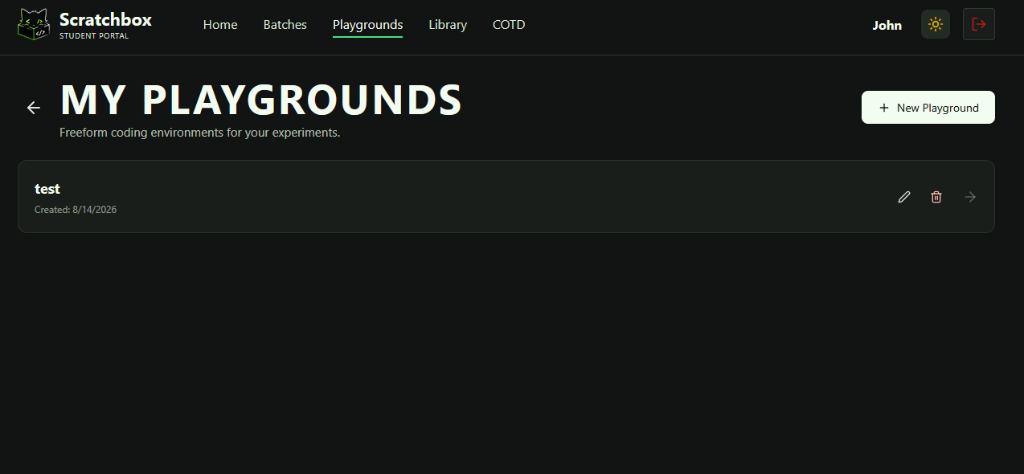
Figure 9.1: Playgrounds management directory with multi-language sandboxes.
9.1 Creating and Managing Playgrounds
- Click "Playgrounds" in the top navigation bar.
- Click "New Playground", name your project, and choose your programming language (Python, C++, Java, C, Node.js, Go).
- Write, execute, and inspect terminal outputs in real-time.
- Your playgrounds are automatically saved to your cloud profile and can be accessed from any device anytime.
10. Challenge of the Day (COTD)
Consistency is key to mastering data structures and algorithms. COTD (Challenge of the Day) drops a fresh curated problem every morning at midnight.
🔥 Keep Your Streak Alive
Solve the problem before 11:59 PM to increase your daily streak, earn XP, and climb the daily institute leaderboard.
11. Student Profile & Submission History
Click on your avatar in the top right to access your Student Profile. Your profile serves as a comprehensive portfolio of your coding activity.
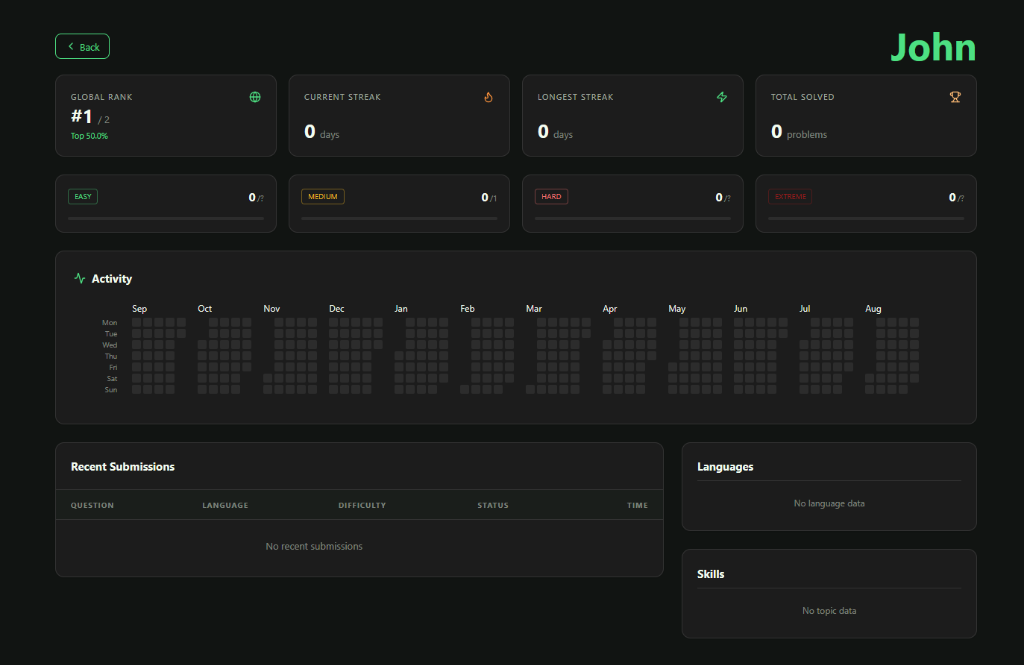
Figure 11.1: The Student Profile Dashboard — Global Rank, Streaks, Difficulty Progress (Easy/Medium/Hard/Extreme), Annual Activity Heatmap, and Recent Submissions.
11.1 Key Metrics on Your Profile
Real-time ranking and top percentile standing among your peers.
Tracks your current active streak and all-time longest streak.
Problems solved across Easy, Medium, Hard, and Extreme tiers.
12-month calendar mapping your daily code submissions.
12. Question Explorer & Practice Library
Looking for extra practice outside of class assignments? Click "Library" in the navigation header to browse hundreds of curated problem templates.
- Category Filters: Filter problems by topic (Arrays, Linked Lists, Trees, Graphs, Dynamic Programming, Strings, Sorting, Math).
- Difficulty Tags: Choose between Easy, Medium, and Hard problems.
- Instant Practice Solver: Solve problems at your own pace with unlimited runs and submissions.
13. Execution Statuses & Student FAQs
13.1 Understanding Submission Statuses
| Status | What it means | How to fix |
|---|---|---|
| PASSED | All test cases passed successfully. | Great job! Your submission is recorded. |
| FAILED | Your code compiled and executed, but produced incorrect output. | Check sample outputs, review logic, and handle edge cases (e.g. empty lists, 0, negatives). |
| COMPILATION_ERROR | Syntax error; compiler failed to build the program. | Read the compiler output log in the console. Look for missing semicolons, parentheses, or typos. |
| RUNTIME_ERROR | Program crashed during execution (e.g. segmentation fault, division by zero, null pointer). | Check array bounds, null checks, and memory allocations. |
| TLE (Time Limit Exceeded) | Program exceeded the allowed execution time limit (typically 2 to 5 seconds). | Check for infinite loops (while(true)) or optimize algorithm complexity (e.g. use O(N log N) instead of O(N^2)). |
| MLE (Memory Limit Exceeded) | Program exceeded the RAM limit (256MB). | Avoid unbounded recursive calls or huge memory allocations. |
13.2 Frequently Asked Questions (FAQ)
Q: What happens if my laptop battery dies or Wi-Fi disconnects during an exam?
A: Don't panic! Scratchbox continuously auto-saves your written code to your browser's persistent cache. Once you reconnect and reopen the test, your entire code is automatically restored.
Q: Can I submit multiple times before the deadline?
A: In open practice sets, you can typically submit unlimited times. However, for formal test labs and graded lab exams, your faculty may configure a maximum submission limit (e.g. only 1, 2, or 3 allowed submissions). You can always use "Run Code" as many times as you like to test and debug your program without using up your official attempts. Always check the remaining attempt counter on your test screen before clicking "Submit".
Q: Why did my test submit automatically?
A: Automatic submission occurs when the scheduled lab timer reaches 00:00, or if you exceeded the maximum allowed tab-switch warnings during a proctored exam.
Q: How do I change my code editor theme or font size?
A: Look at the top-right toolbar of the Cloud IDE. Click the theme palette icon to toggle between Night Owl, GitHub Dark, and GitHub Light, and use the + / - icons to adjust font sizing.